
Introduction to Sketcher
Sketcher is a SilicoXplore tool useful for drawing and editing the molecular structures of various compounds, such as drugs, chemicals, metabolites, and proteins. Sketcher allows chemists, researchers, and students to build molecules by positioning atoms, linking them with bonds, and tailoring chemical attributes such as charges, stereochemistry, and ring systems.
This tool is a fundamental part of cheminformatics platforms and finds application in fields such as drug design, searching chemical databases, and education. It is also utilized in medicinal chemistry to draw synthetic routes and compound diagrams. Various computational works require molecule preparation, so Sketcher will be useful for drawing and preparing different file formats. Sketcher also provides basic physicochemical properties of compounds using the calculate properties icon.
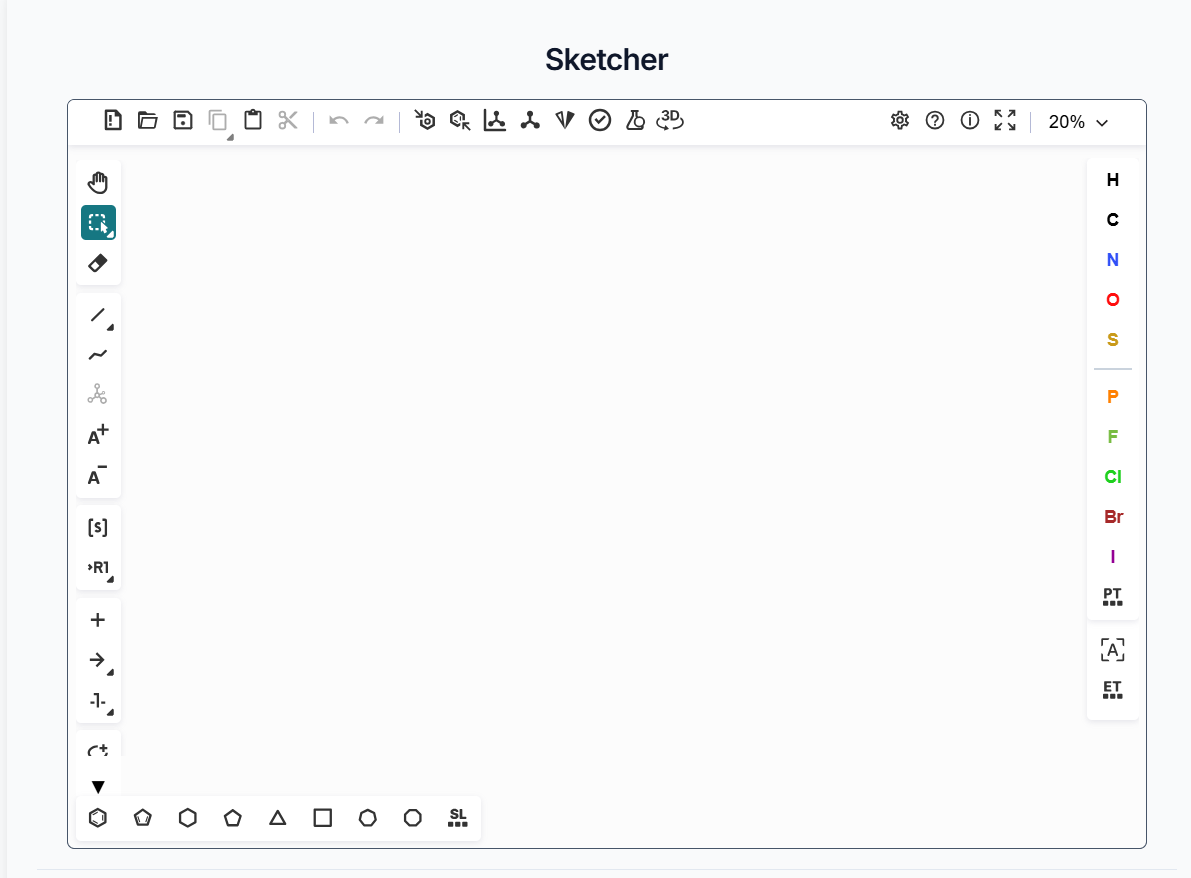
Figure 1. Homepage of the Sketcher tool
Core Drawing Features
1. Atom Addition and Placement
You can add atoms like C, H, O, F, and Cl from the atom bar on the right side of the Sketcher tool. The user can add any atom from the periodic table via the "PT" tab. You can quickly add an atom by clicking it and then dropping it in an attachment position. The user can also type any atom symbol using the "[A]" tab. An "Extended Table" option is also implemented for different types of functional group icons.
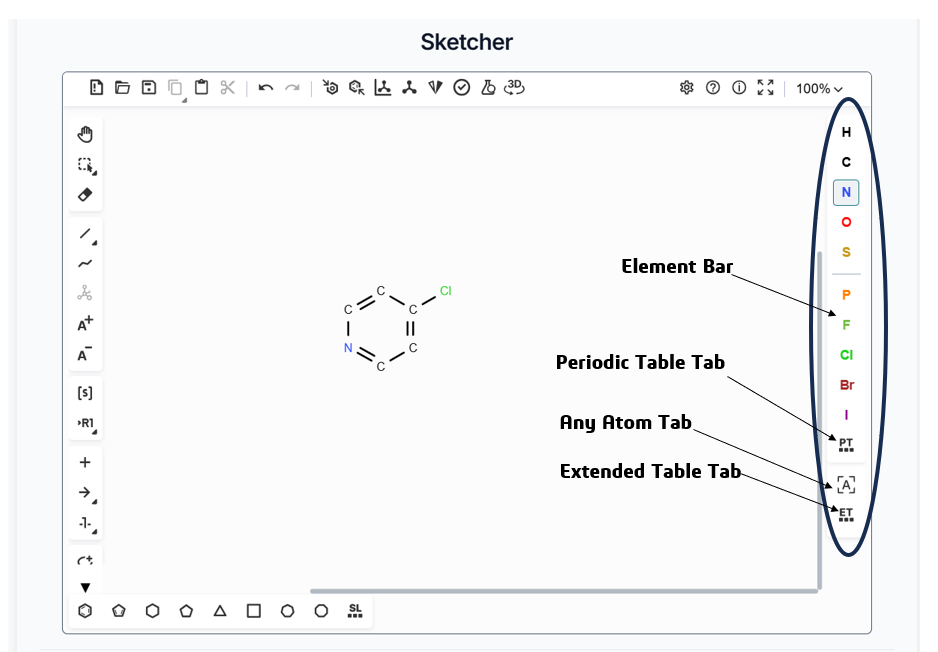
Figure 2. Element bar of the Sketcher tool for the addition of atoms in molecular structures
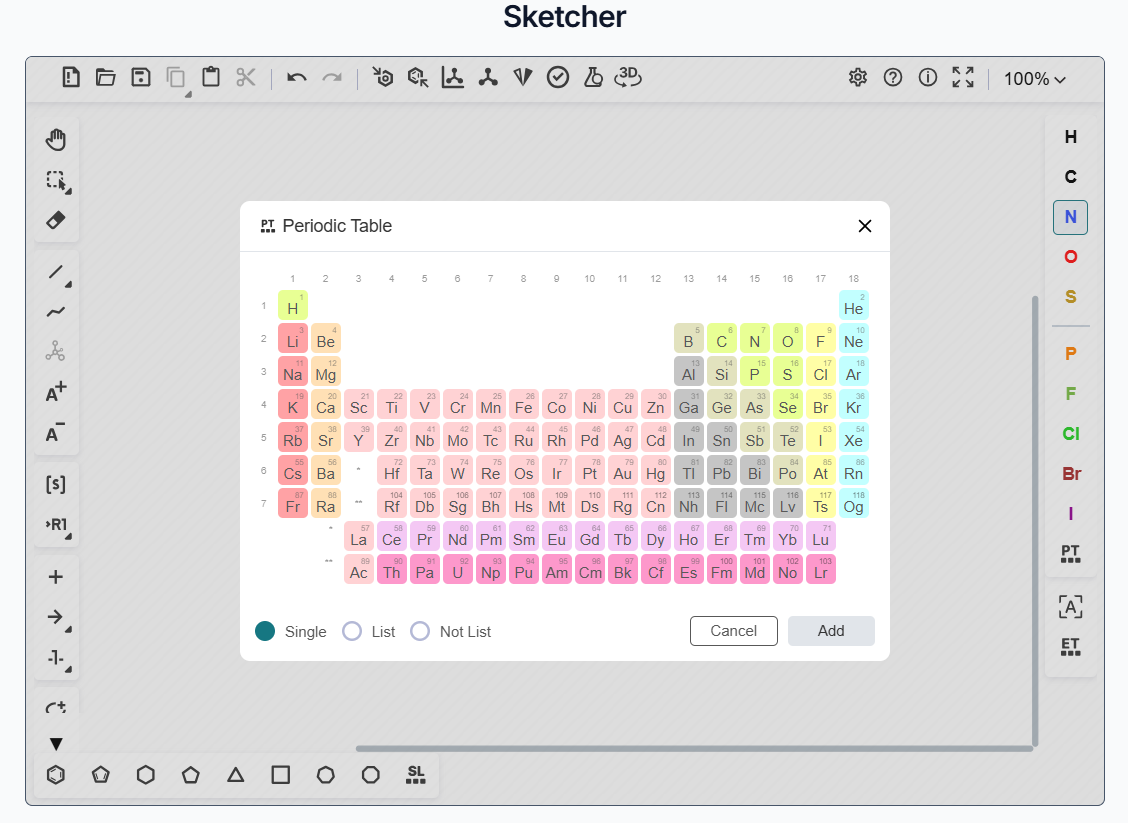
Figure 3. Periodic Table atom addition of the Sketcher tool
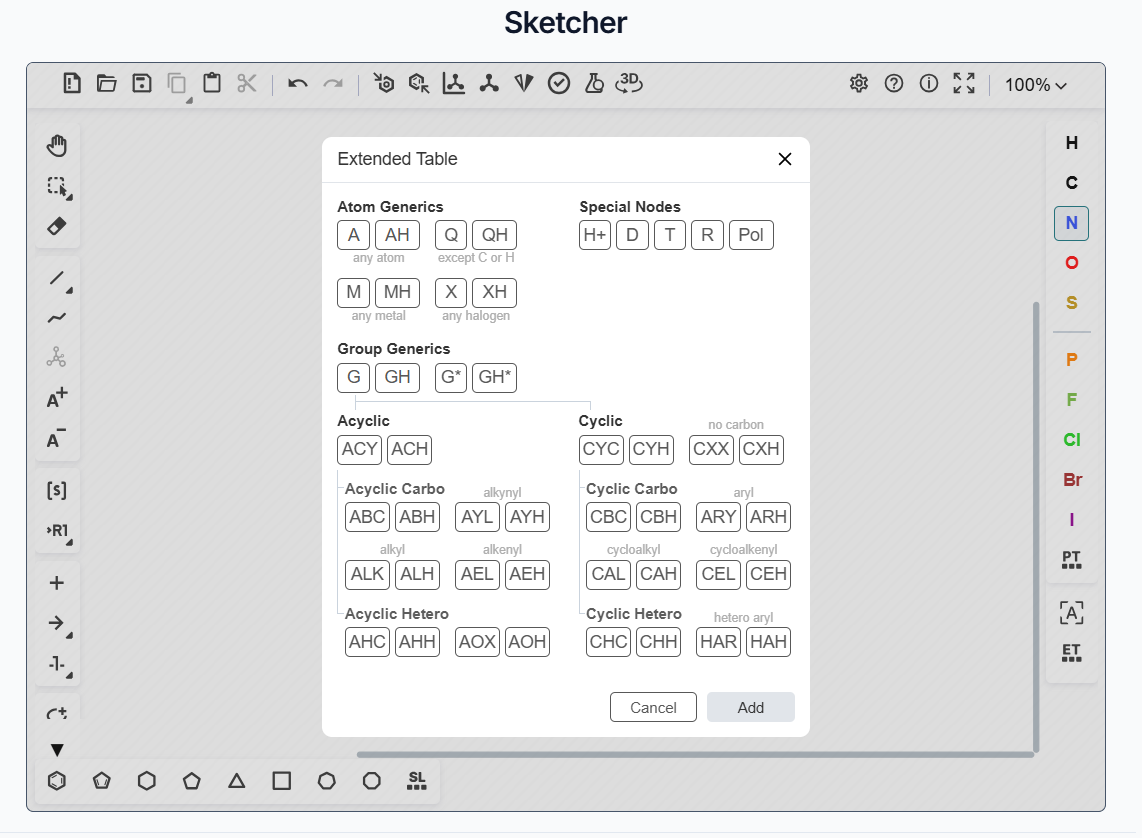
Figure 4. Extended Table of the Sketcher tool
2. Bond Drawing
During the drawing of molecules, you can select different types of bonds, such as single, double, triple, dotted, aromatic, dative, hydrogen, and cis/trans bonds. To add a bond, select a bond type and click on the area where you want to add it. You can also add carbon chains of any length by clicking on the "Chains" tab on the main bar.
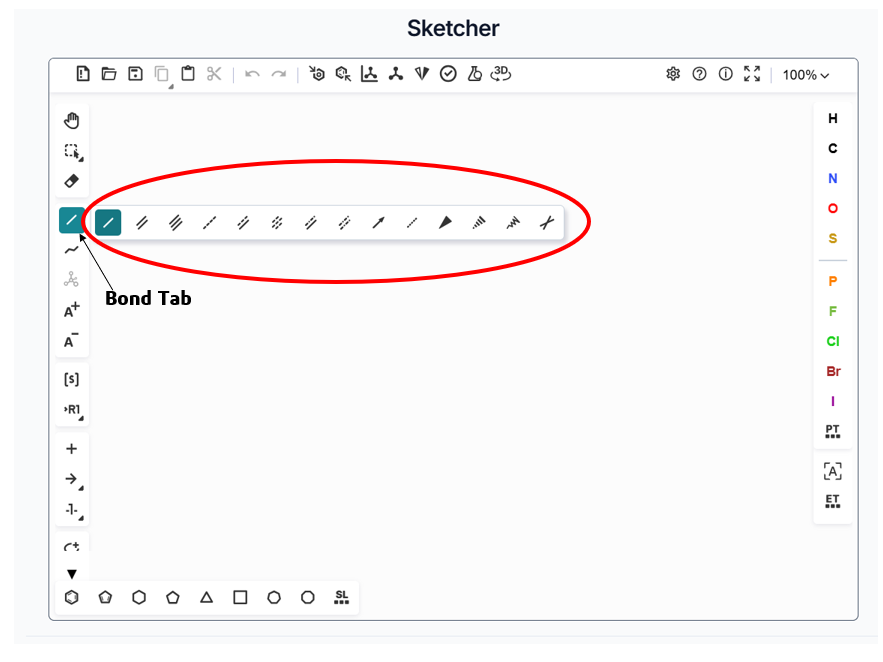
Figure 5. Bond Tab of the Sketcher tool
3. Rings and Templates
For drawing compounds, you can attach different types of rings, such as aromatic rings (Benzene), heterocyclic rings, and alicyclic rings (cyclohexane, cyclopentane). A Structure Library is also available; users can access it by searching for templates of rings, functional groups, salts, and solvents. Click on the "SL" tab on the bottom bar of the tool to access the structure library.
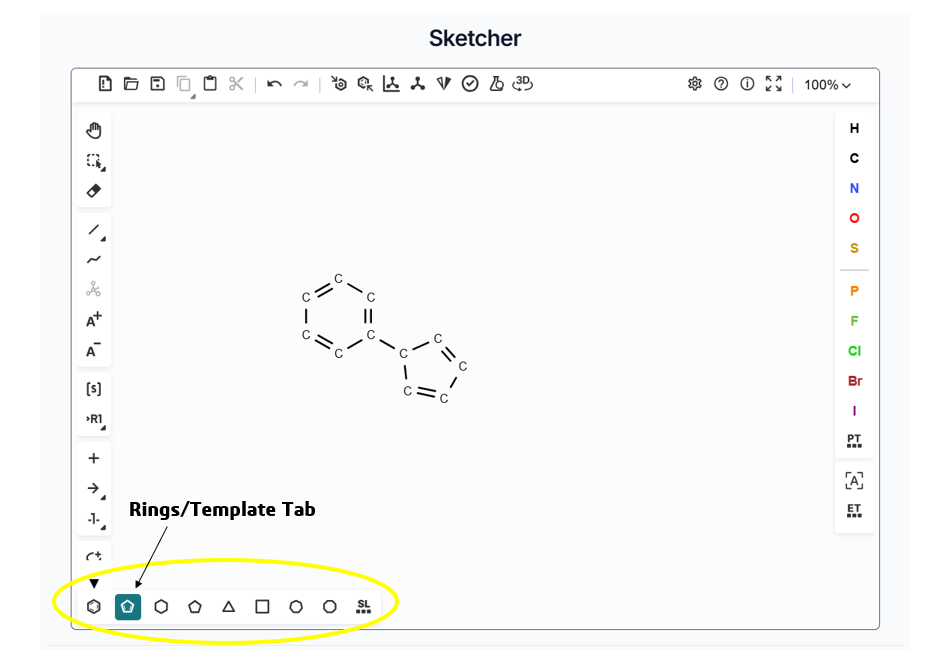
Figure 6. Ring/Template Tab for the addition of rings in structures of the Sketcher tool
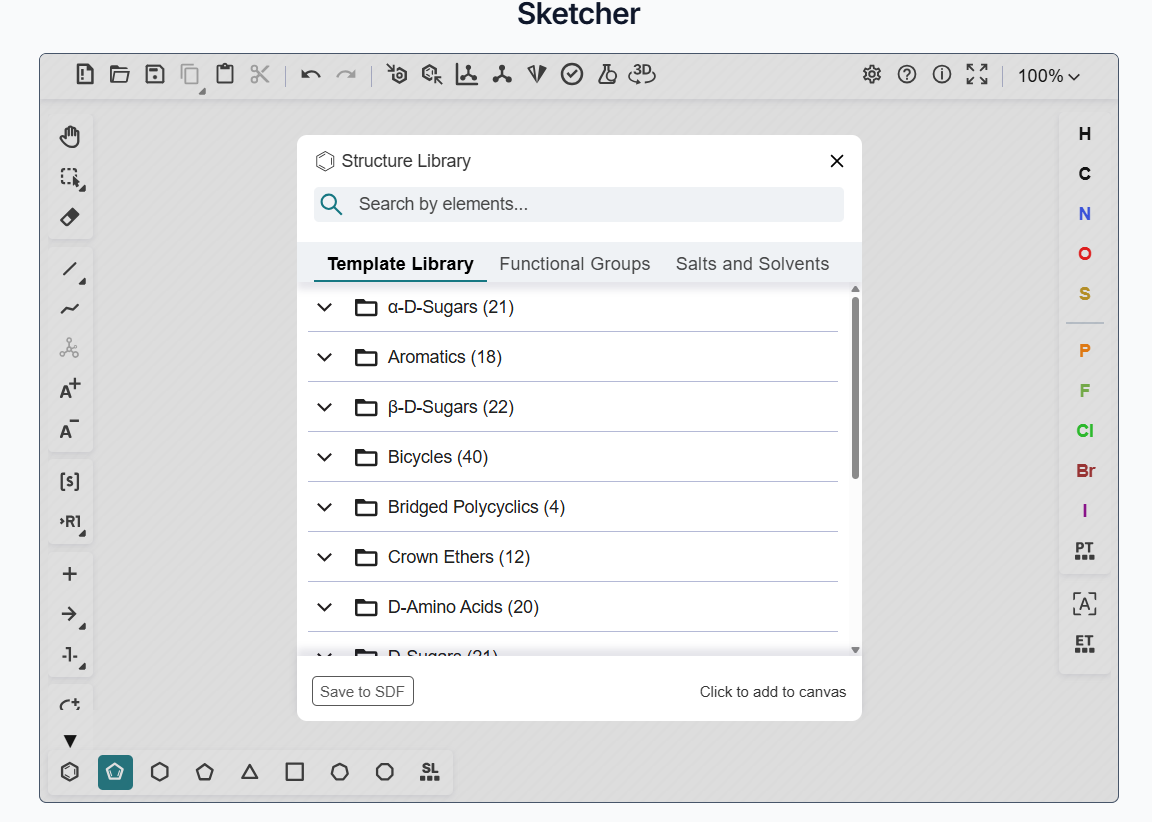
Figure 7. Structure library of the Sketcher tool
4. Editing the Structures
You can erase unwanted parts of molecules with the "Erase" (Del) icon. You can undo and redo actions using the options on the upper bar. Structures can be magnified by using the zoom in/out tabs. For cleaning structures, such as alignment and correcting errors in atoms and valence, select the "Clean Up" option. You can also check structures for valence, radicals, stereochemistry, and overlapping bonds/atoms using the "Structure Check" tab. Drawn molecular structures can be converted into 3D coordinates by clicking the "3D" tab. For moving structures, a hand tool is available on the right-side bar. You can select the whole structure using the rectangle selection tool. Aromatic rings can be converted to their dearomatized form and back again using the "Dearomatize" and "Aromatize" tabs. The entire canvas can be cleared using the "Clear" tab on the upper bar.
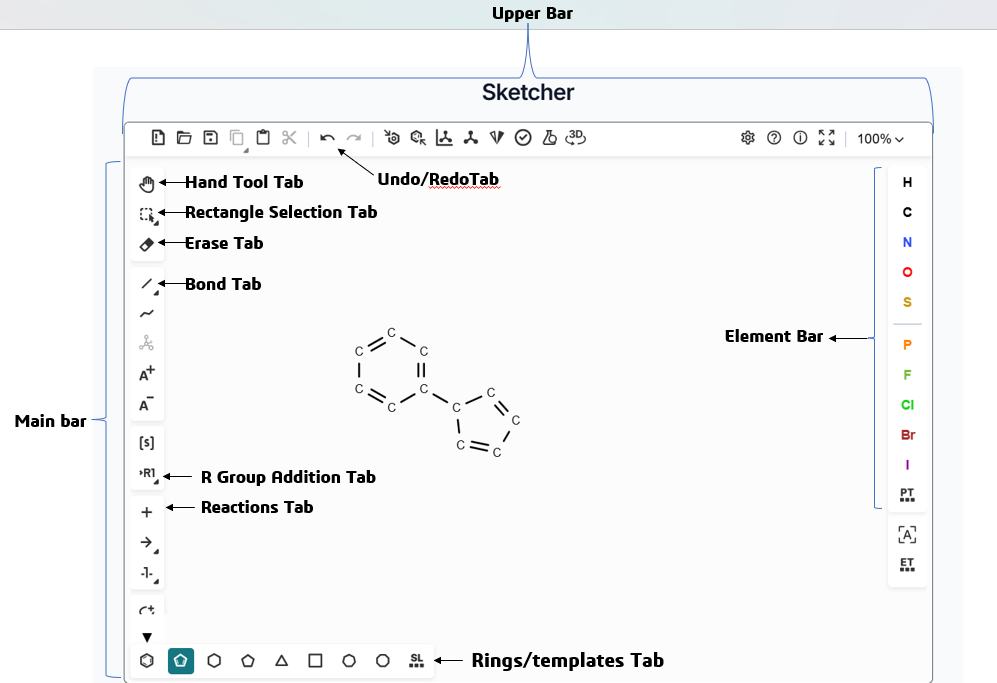
Figure 8. Various types of bars and tabs of Sketcher
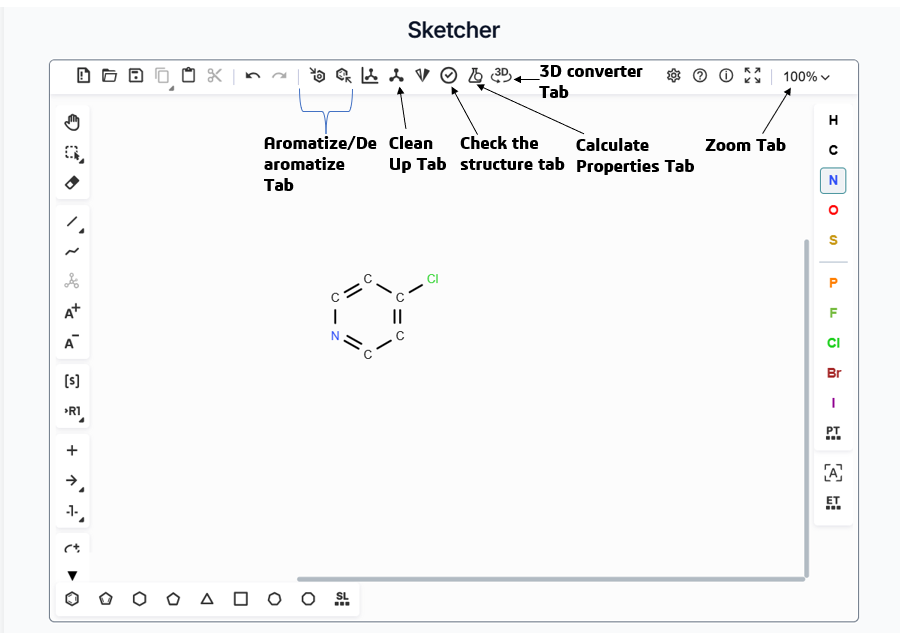
Figure 9. Various types of bars and tabs of Sketcher
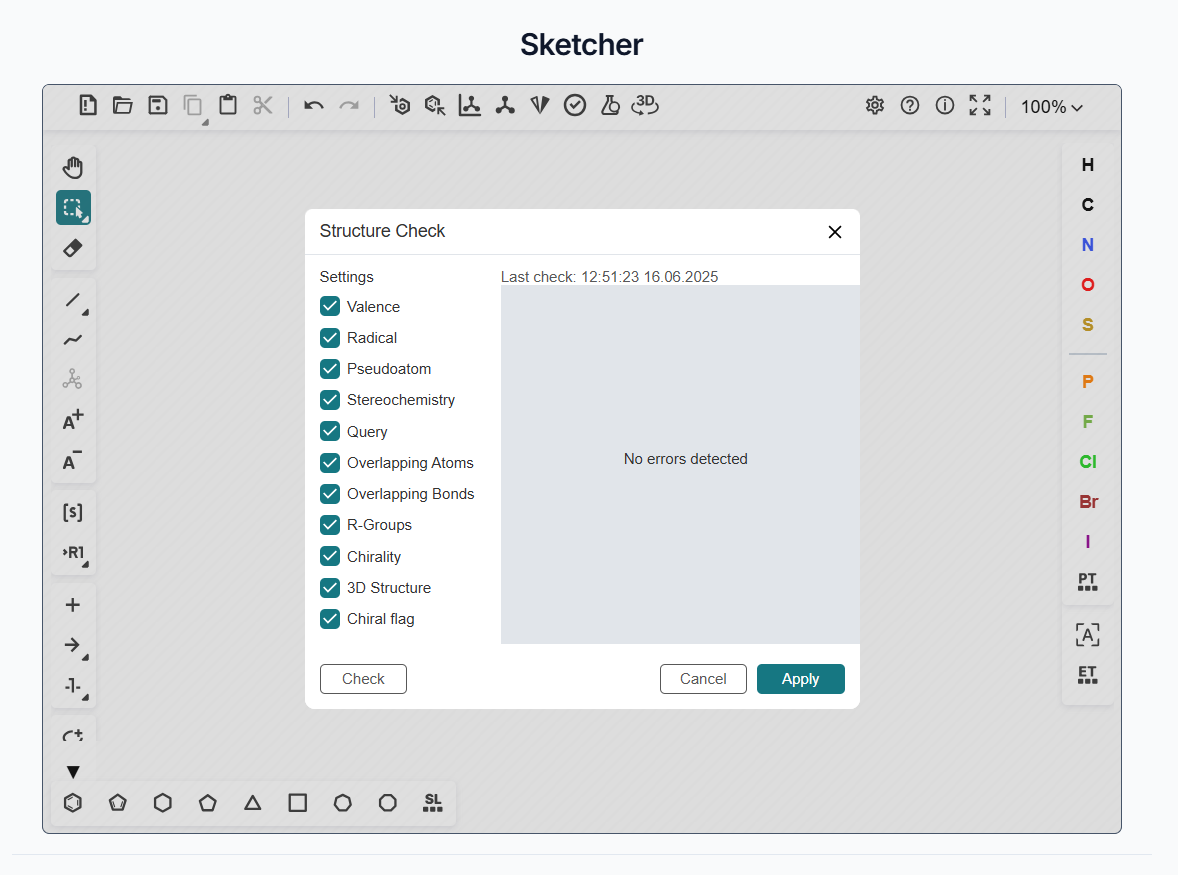
Figure 10. Check the structure features tabs of Sketcher
5. Reaction Process Drawing
Sketcher allows for drawing chemical reactions or synthetic schemes using the plus (+) and arrow tools, the "Add Text" tab, and by adding R-group substituents (R1, R2, etc.) using the R-group tab.
6. Calculation of Molecular Properties
Users can calculate properties such as chemical formula, molecular weight, and elemental analysis of drawn structures. To do this, click on the "Calculate Values" tab available on the upper bar of the Sketcher tool.
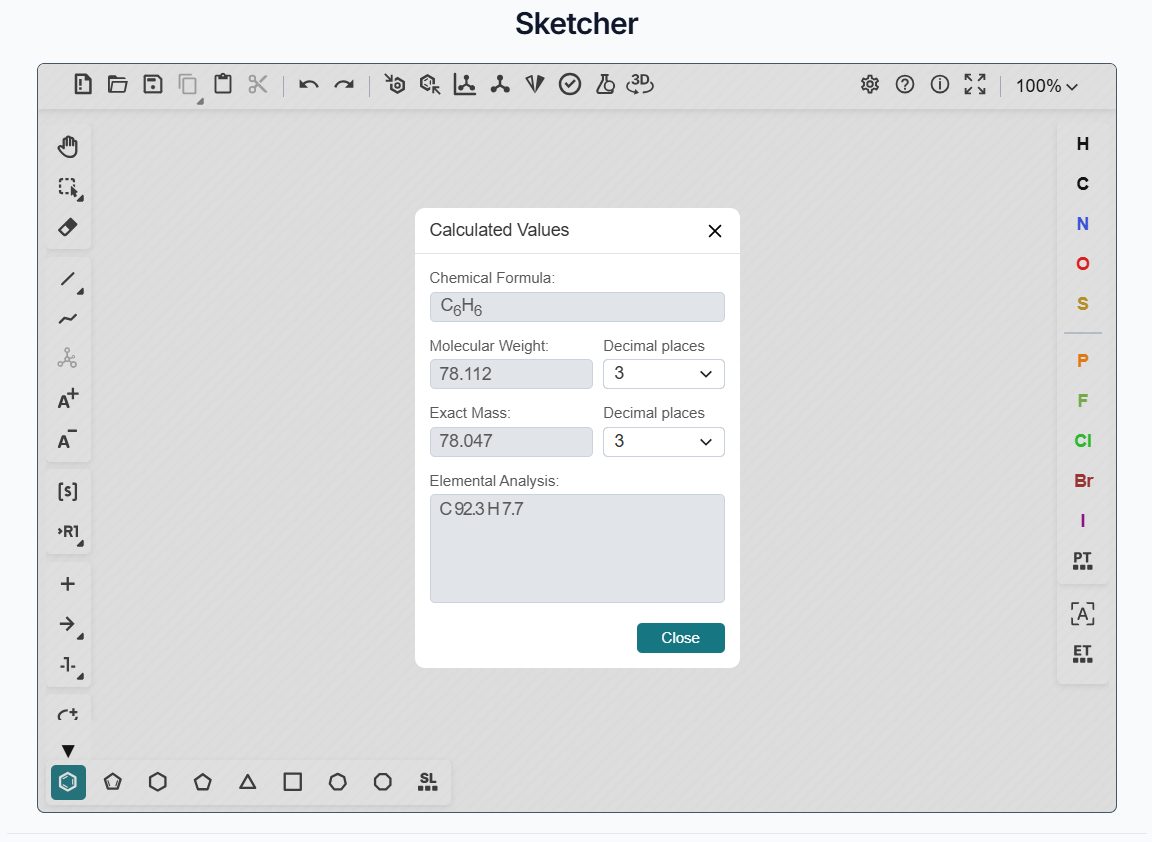
Figure 11. Calculated values tab of Sketcher
7. Input File Submission and Saving Output Data
Users can provide input molecules by directly pasting SMILES or by uploading SMI or SDF file formats. To paste SMILES, click the "Open" tab on the upper bar, select "Paste from Clipboard", paste the copied SMILES, and then press "Add to Canvas". To upload a file, press the "Open" tab and select "Open from file". Generated structures can be saved in different file formats such as MOL, SDF, PNG, and CDX by going to the "Save as" option.
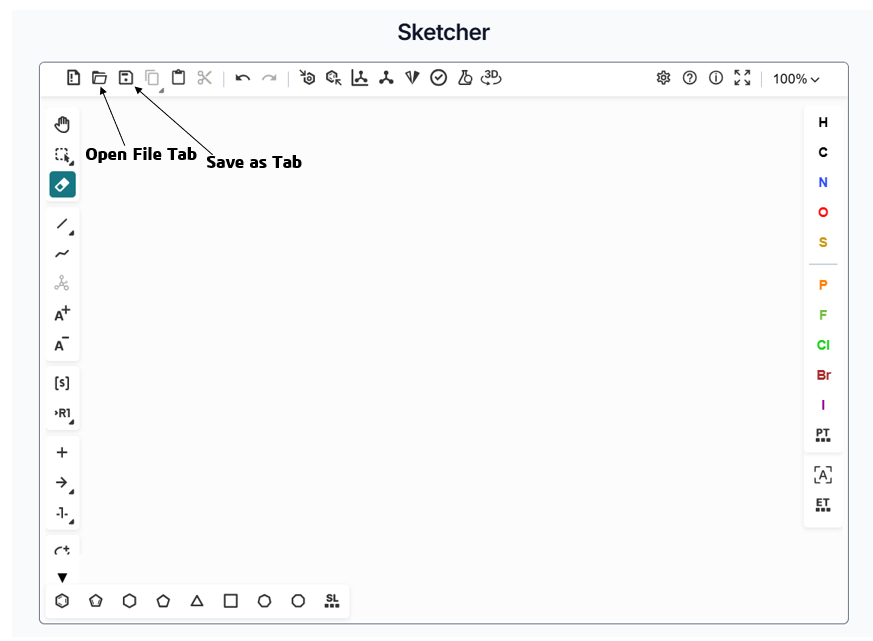
Figure 12. Input and Output generation tab of Sketcher
Execution of Sketcher
Before using Sketcher, go to the SilicoXplore homepage and create an account using your email. After verifying your account, you can sign in to the SilicoXplore platform using your email and password.
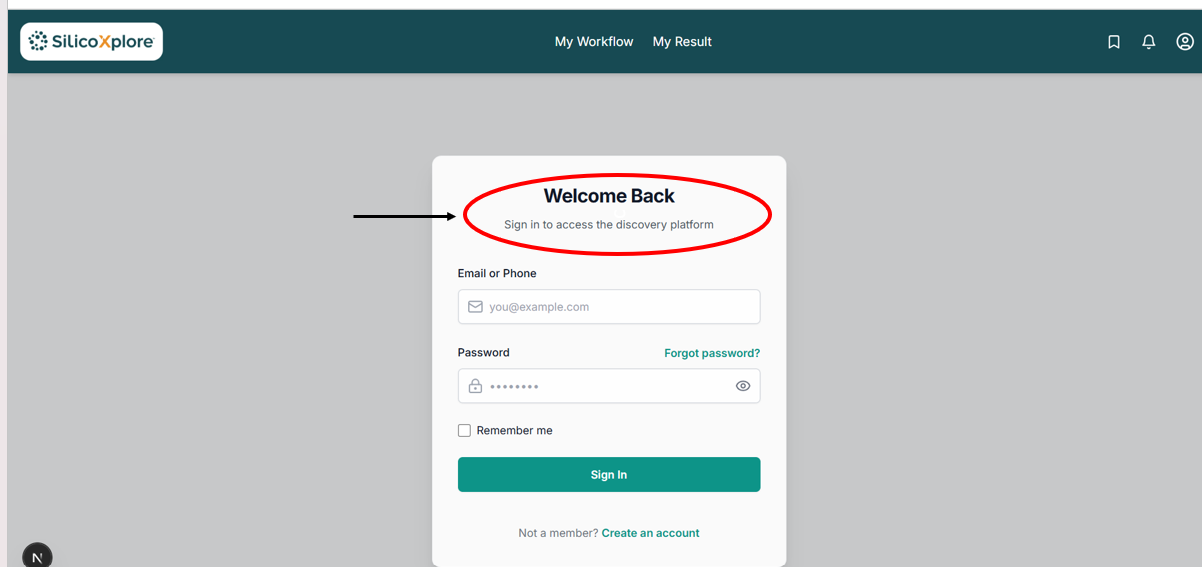
Figure 13. Sign-in page of the SilicoXplore platform
After logging in successfully, you can see all the tools of SilicoXplore. Select and click on the Sketcher Tool.
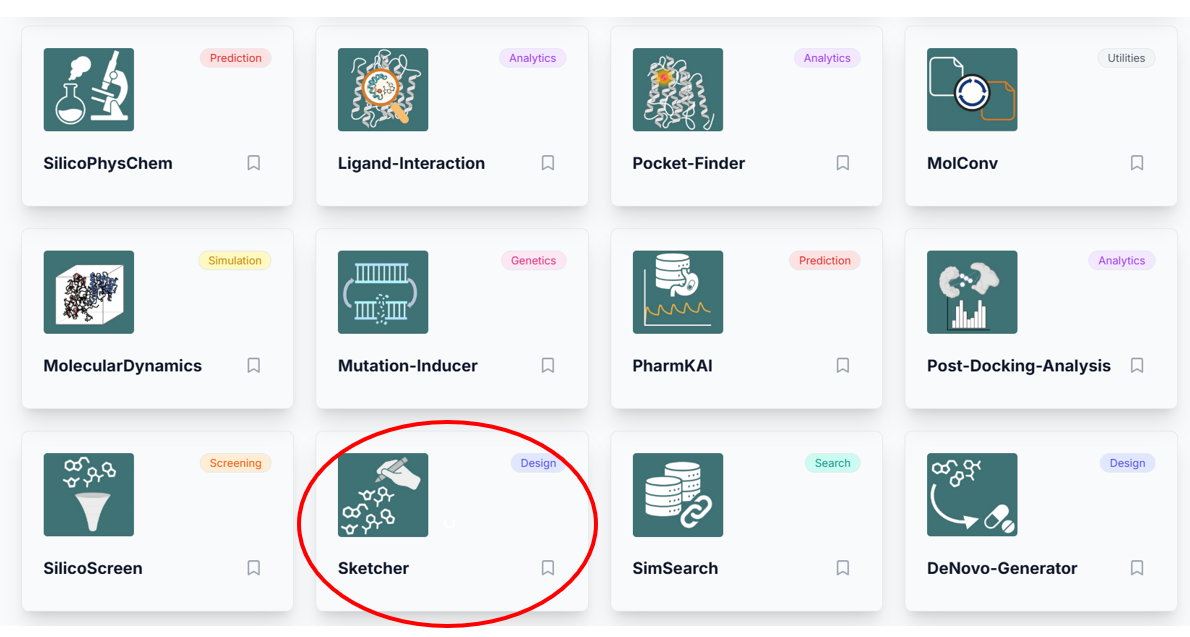
Figure 14. Sketcher tool of the SilicoXplore platform
Uploading SMILES and Generating Output
You can go to the "Open" tab, paste the SMILES of a compound, and click the "Add to Canvas" option to get the structure of the compound. The generated structure can then be saved in a different format by clicking on the "Save as" icon.
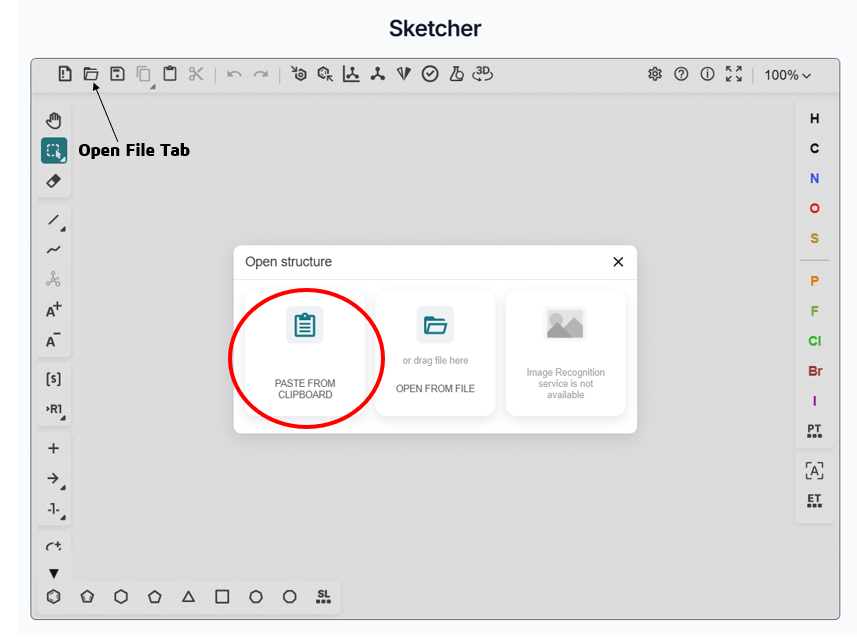
Figure 15. Uploading an input SMILES in Sketcher
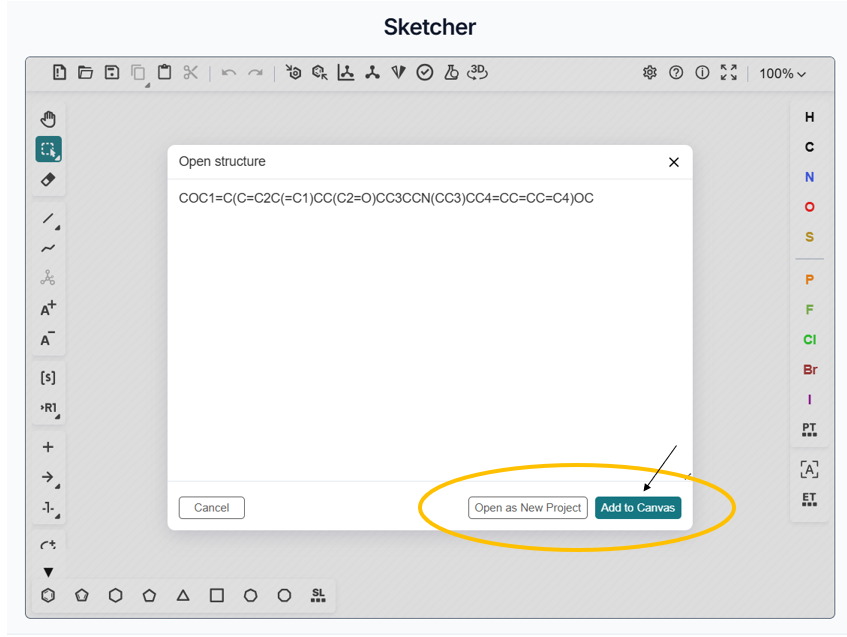
Figure 16. SMILES pasting window of Sketcher
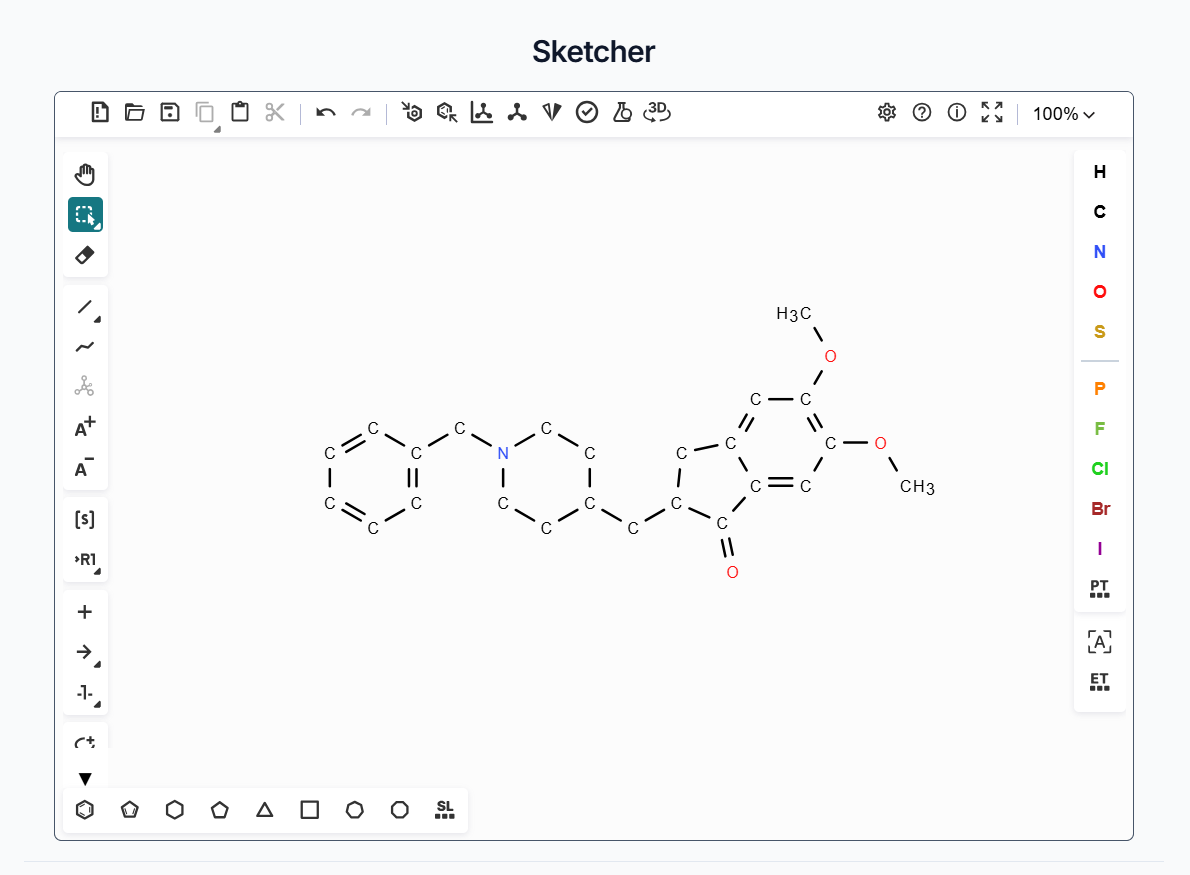
Figure 17. Generated structures from the SMILES of compound
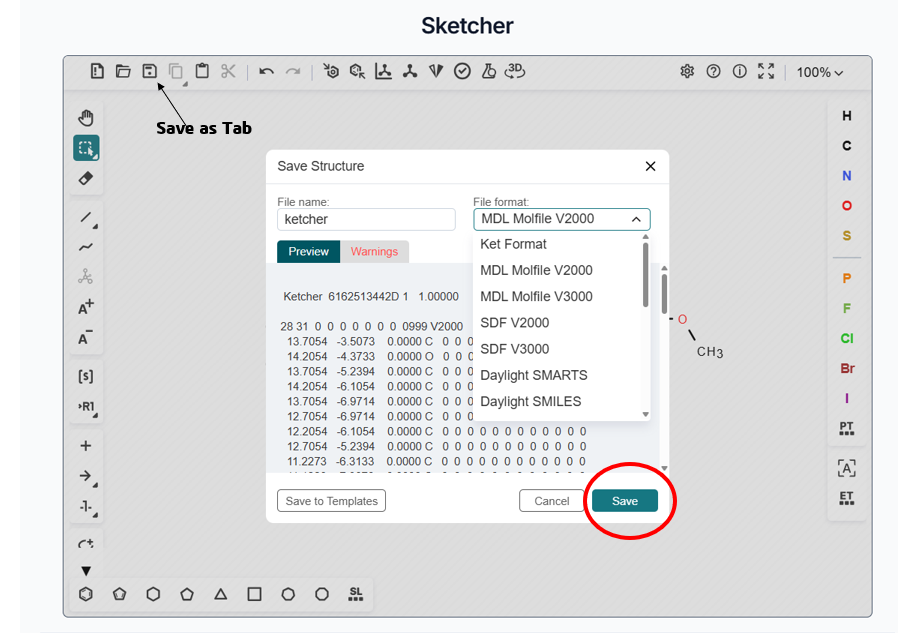
Figure 18. Saving of Output file of Sketcher
Tips
- For execution of Sketcher, users have to sign in compulsorily. If the SilicoXplore page expires, the user can sign in again.
- Users should use the corrected form of SMILES for drawing compounds; faulty SMILES are not allowed.
- In molecule structures or chemical reaction drawing, users can change font style, size, and other settings from the settings icon.