Introduction to Sim-Search
Similarity search is a computational technique used to identify compounds structurally or chemically similar to a given reference molecule (also called a query). It is based on the fundamental principle of Structure–Activity Relationship (SAR), which assumes that molecules with similar structures will likely exhibit similar biological activities.
SimSearch is an AI-powered molecular similarity search tool designed for cheminformatics applications. It employs multiple fingerprint methods to assess the structural similarities between chemical compounds. This method is widely used in drug repurposing, virtual screening, lead optimization, and database mining. This tool is particularly valuable in drug discovery, compound screening, and chemical database analysis.
A Step-by-Step Guide to Execute the Tool
Before executing the tool, you must create a Job ID. You can customize this ID or click the "Create Job ID" button to have one generated for you automatically.
TIP: Without creating a JOB ID, you will not be able to access any options of the tool.

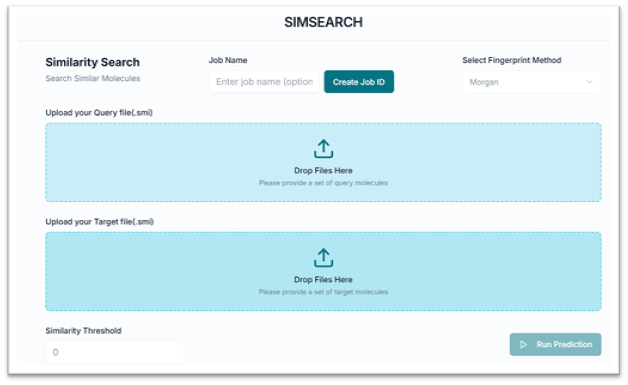
This is the Sim-Search tool's application workspace page, shown below. It displays various options for exploring and generating similar compounds. This tutorial will explain each step in detail.
Uploading Query and Target Files
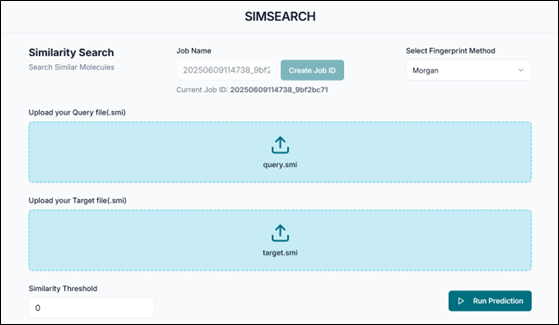
From the "Upload your Query file" section, browse and upload your query compounds (.smi) file. From the "Upload your Target file" section, upload your target compounds (.smi) file.
Tip: The query file contains the molecules you want to find similar compounds for, while the target file contains the database of molecules to be compared against. The search identifies which target molecules are structurally similar to the query.
Configuring the Search
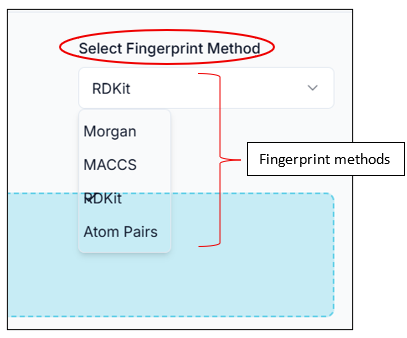
After uploading the files, select the type of Fingerprint Method you want to use from the "Select Fingerprint Method" section. You will get all the available options in the drop-down menu.
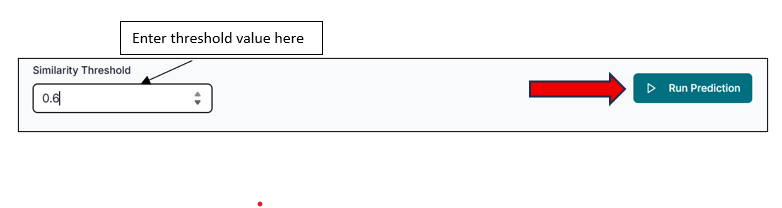
You can set a threshold value to sort the final results by entering a number. Then, click on the "Run Prediction" button to start the similarity search.
Downloading the Results
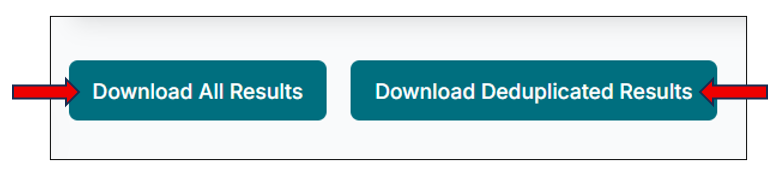
After the predictions are done, you will get two download options.
- Download All Results: Downloads the entire result set for your task.
- Download Deduplicated Results: Downloads only the query-target pair that has the highest similarity score for each query.
Analyzing the Result Files
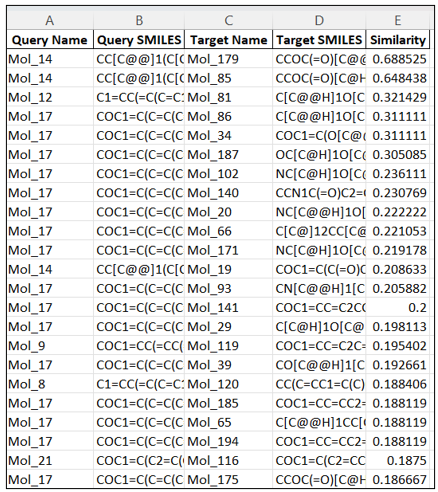
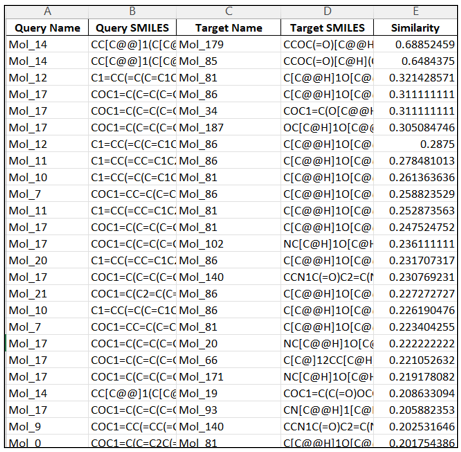
As shown in the image below, you will get a CSV file of your results. This is the CSV for the entire result, containing the query, target names, their SMILES, and the similarity score.
The image below displays the results of the deduplicated similarity search. From the entire result set, only the single best query-target pair (with the highest similarity score) is provided for each query.