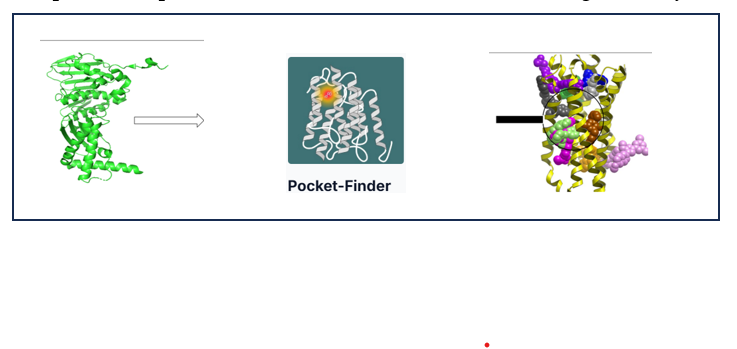
Introduction to Pocket Finder
Pocket Finder is a high-performance computational tool built to detect and characterize potential binding sites directly from protein structure files. It applies advanced geometric algorithms to explore protein surfaces, detect concave regions, and analyze physicochemical features.
The tool provides detailed descriptors and visualizations of each identified pocket, supporting downstream applications such as molecular docking, pharmacophore modeling, and lead optimization. With a browser-based interface and support for multiple protein inputs, Pocket Finder streamlines the detection and comparison of binding pockets, offering a comprehensive platform for both academic and industrial drug discovery initiatives.
A Step-by-Step Guide to Execute the Tool
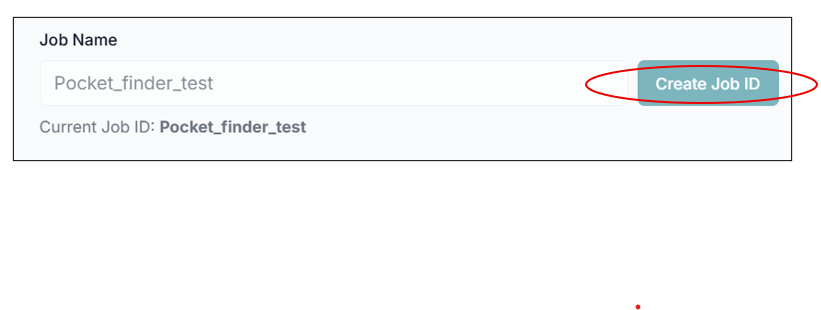
Before executing the tool, you must create a Job ID. You can customize this ID or click the "Create Job ID" button to have one generated for you automatically.
TIP: Without creating a JOB ID, you will not be able to access any options of the tool.
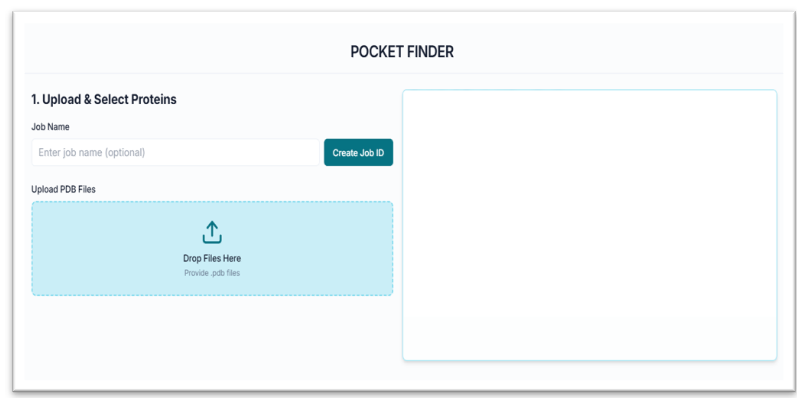
This is the Pocket Finder tool's application workspace page, where various options for exploring and finding pockets are displayed. This tutorial will explain each option in detail.
Searching and Exploring Pockets of the Protein
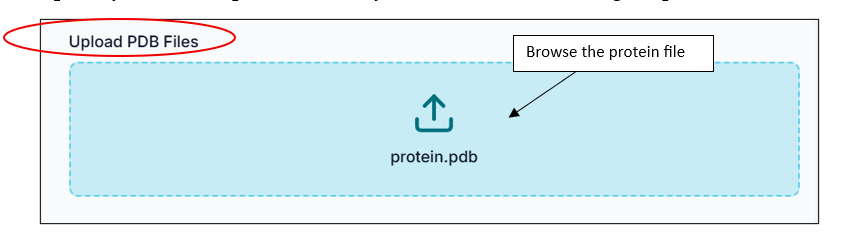
Upload your Protein .pdb file, which you want to use for finding pockets.
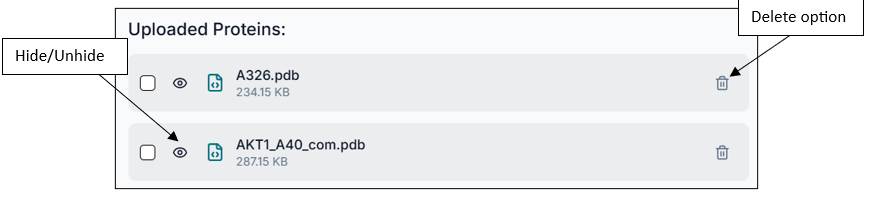
Once you upload the protein, you can see its details in the "Uploaded Proteins" section.
Tip: You can upload multiple proteins.
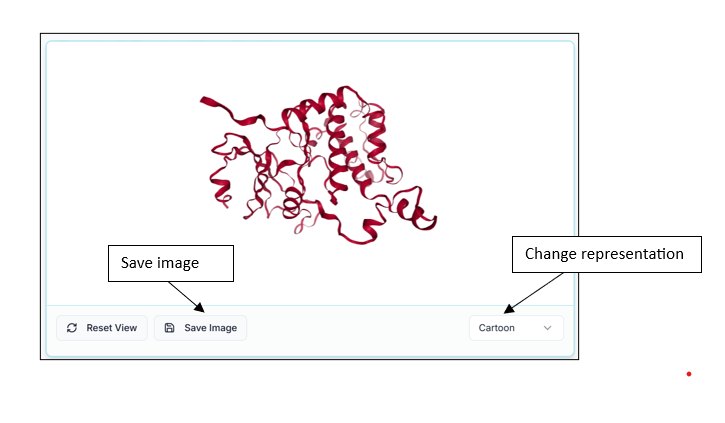
From the uploaded proteins, select the protein you want to find pockets for by clicking on the checkbox. As soon as the protein is uploaded, you can visualize it in the visualization pane. You can reset, save an image, and also change the representation of the protein.
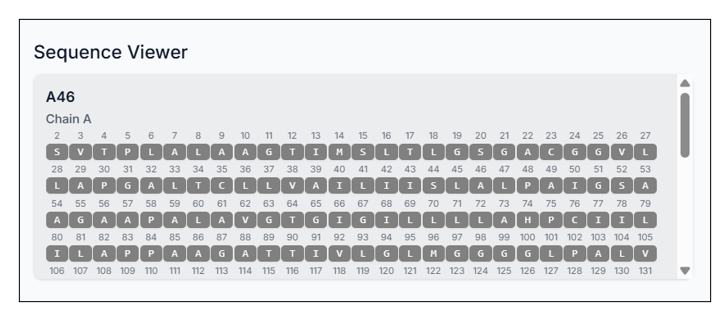
You can view the entire amino acid sequence of your uploaded protein in the "Sequence Viewer" section of the tool.
Finding and Analyzing Pockets
Once you select the protein or proteins you want to use, click on the "Find Pockets" option and wait for the results.
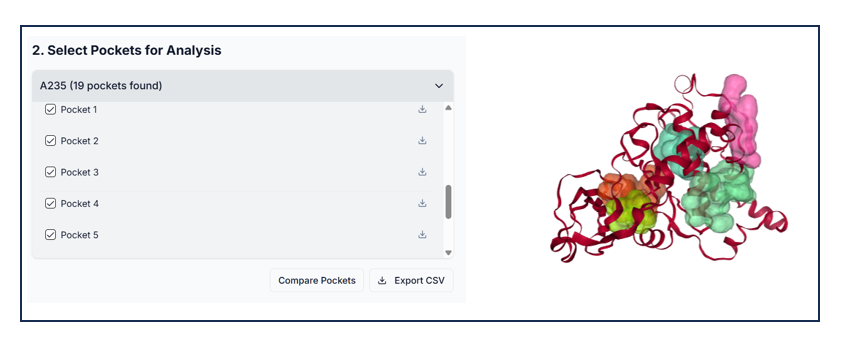
Select the pockets you want to visualize and analyze; the selected pockets will be highlighted. You can compare all the pockets by clicking on the "Compare Pockets" option, and can also save all the details and download them in a CSV file by clicking on "Export CSV file".
Comparing and Exporting Results
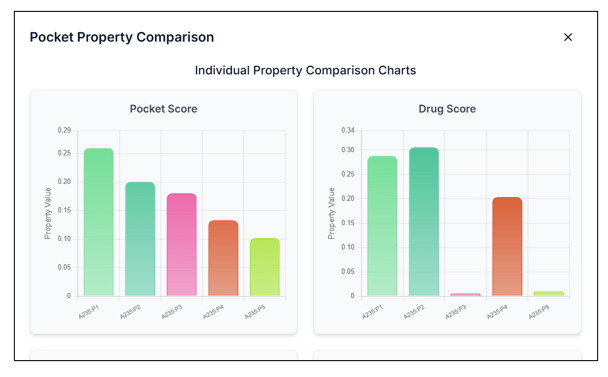
When you click on the "Compare Pockets" option, you will get a graphical representation as well as a comparison of each pocket parameter, as shown in the image below.
You can see all the detailed information about the selected pockets in the tool's window itself, as shown in the image below. The same information can be downloaded when you export the CSV file.